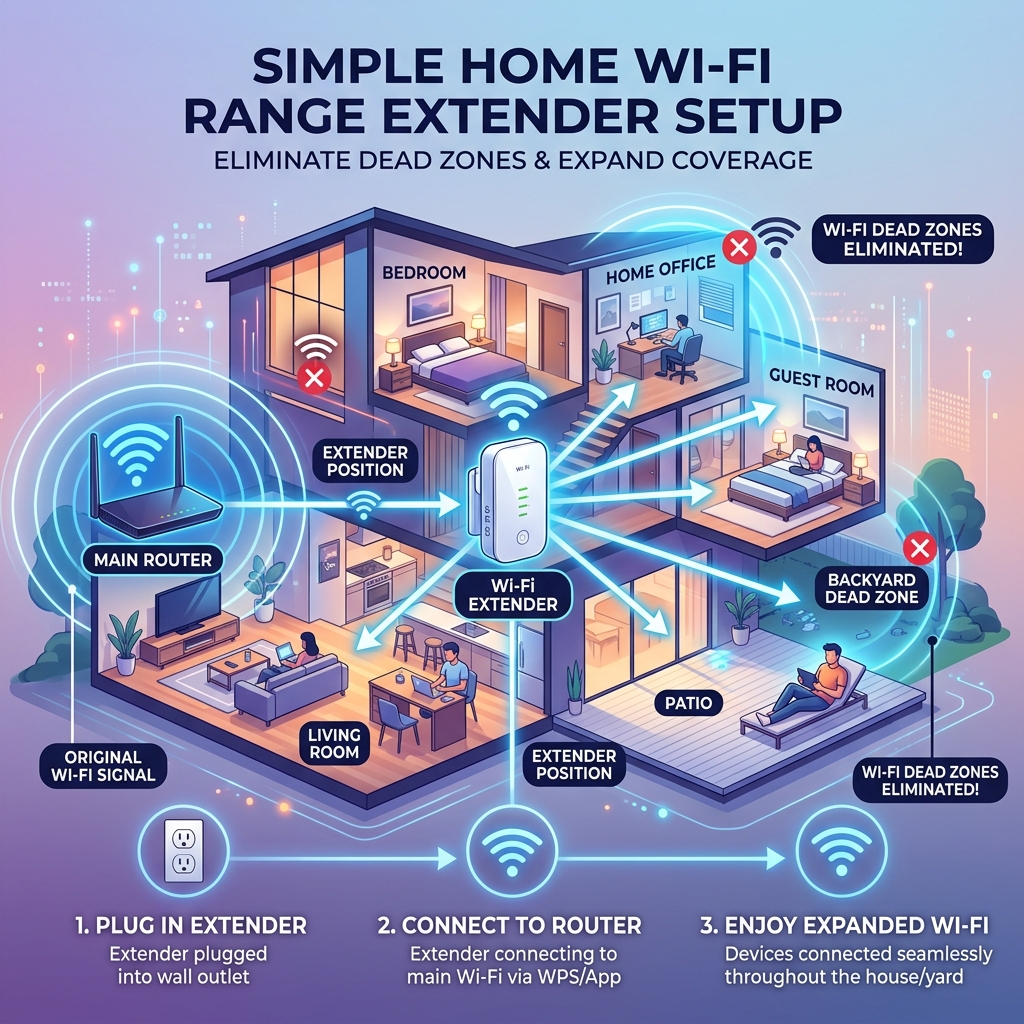
Method 1: One-Touch WPS Button Setup (Recommended)
Fastest method. No password typing required.
Step 1: Power On
Plug the extender into a wall socket located in the same room as your main router. Wait 30 seconds until the Power LED light stays solid Green or Blue.
Step 2: Press Router WPS
Press and hold the WPS button on your main router for 2 to 3 seconds until the WPS light starts blinking.
Step 3: Press Extender WPS
Within 2 minutes, press the WPS button on your Connect Wi-Fi Extender. Wait 60 seconds while both devices synchronize.
Step 4: Relocate
Once the Signal LED turns solid Green, unplug the extender and move it halfway to your dead zone area!
Method 2: Web Browser Setup (Phone / PC)
Use if your router does not have a physical WPS button.
- Plug the extender into a wall outlet near your router.
- On your mobile phone, tablet, or laptop, open Wi-Fi Settings and connect to the temporary network named
Connect-Setup-xxxxorPRO-EXTENDER-SETUP. - Open your web browser (Safari, Chrome, Edge) and navigate to
http://192.168.1.1orhttp://setup.connectextender.local. - Create an admin password, then select your existing home Wi-Fi network name (SSID) from the list.
- Enter your existing router's Wi-Fi password and click Save & Connect.
- Your extender will reboot and broadcast your extended Wi-Fi signal ending with
_EXT.
Understanding LED Light Indicators
Optimal signal connection. Extender is placed in the ideal spot between router and dead zone.
Signal is acceptable but weak. Move the extender closer to your main router for faster speeds.
No connection to router. Check if your router password changed or move extender closer to re-pair.
Change Wi-Fi Password or Update Network Settings
Use this after your ISP or router password changes, or if devices cannot join the _EXT network.
- Connect your phone or computer to the extender network (often named with
_EXT). - Open a browser and go to
http://192.168.1.1orhttp://setup.connectextender.local. - Sign in with your extender admin password. If you never set one, check the label on the device.
- Open Wireless or Wi-Fi Settings. Select your current home network (SSID).
- Enter the new router Wi-Fi password, then save. Wait for the extender to reboot.
- Reconnect your devices using the updated password. In extender mode it should match your main Wi-Fi password.
Factory Reset & Reconnect
Reset if you changed routers, forgot the admin login, or the extender will not connect after a password update:
Factory Reset: Locate the pinhole labeled RESET on the side or bottom of the extender. While it is plugged in, press and hold with a paperclip for 8 to 10 seconds until the LEDs flash. Release and wait about 1 minute for reboot.
After a reset, treat it as a new device: plug it in near the router, then follow New Wifi Extender Setup to pair again.